2.2.1 Windows
System Requirements
- Operating System: 64-bit Windows 10 and above
- Memory (RAM): 4GB and above
The above are the recommended minimum configurations. Higher configurations will make Mind+ run more smoothly, compile faster, and provide a better experience.
If these system requirements are not met, you can continue to use Mind+ V1.
Installation Steps
Step 1: Download Software
-
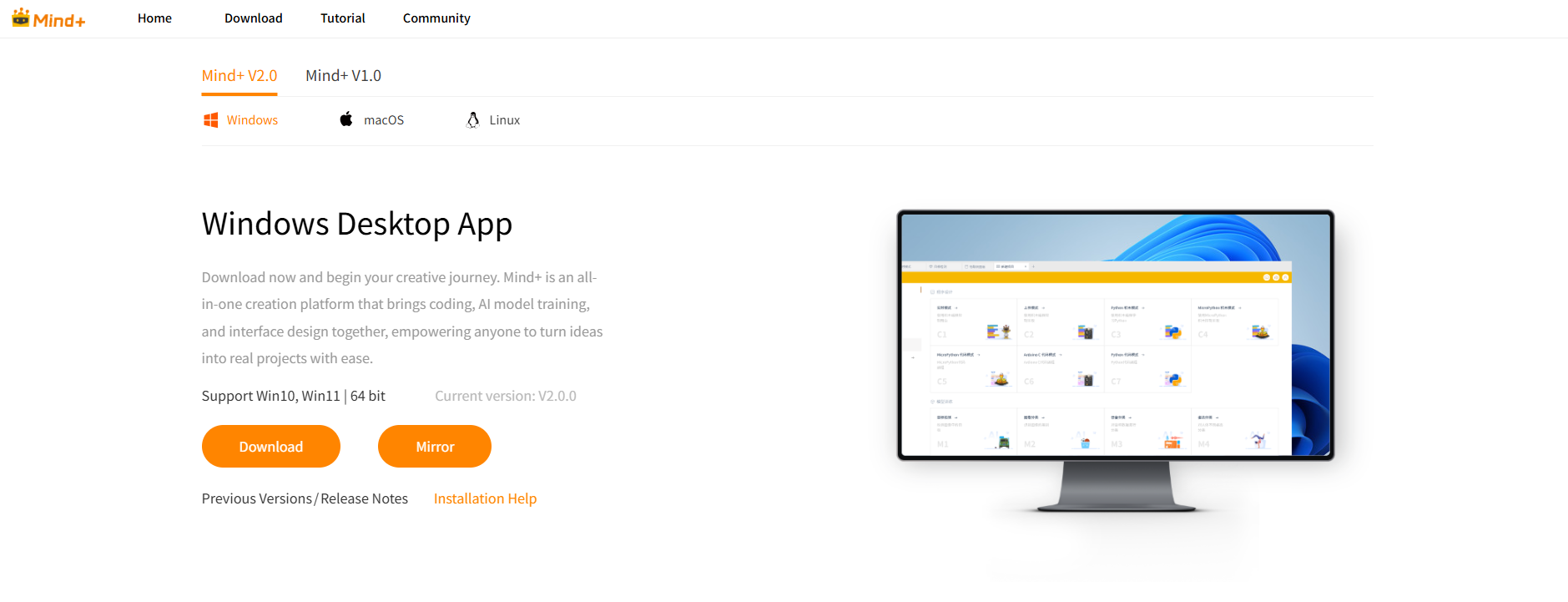
Visit the Mind+ official website: http://mindplus.cc
-
Click the Download Now button

-
Select the corresponding version for your operating system to download
Step 2: Install Software
Installation Note
If Mind+ is already installed on your computer, the new version will automatically overwrite the old version without needing to uninstall first.
If you want both versions to coexist, please download the Mind+ V1 portable version.
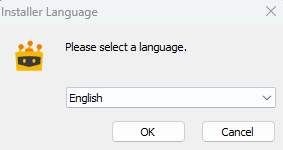
1.Select Installation Language
-
Double-click the installation package, select the installation language, and click OK to continue
2.Complete Installation
-
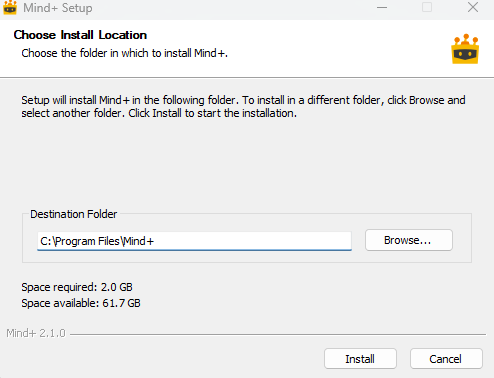
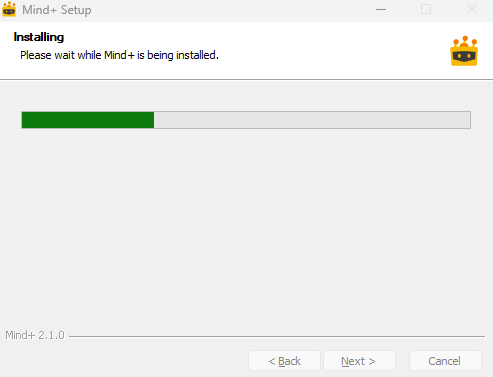
Follow the installation wizard prompts to install, and wait for the progress bar to complete
3.Installation Successful
-
After successful installation, click Finish to close the installation wizard
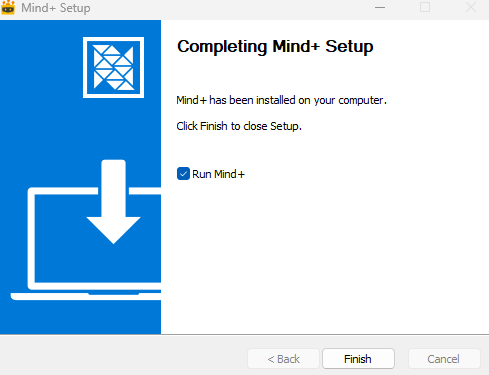
4.Run Mind+
- click Finsh to run Mind+
Step 3: Language Settings
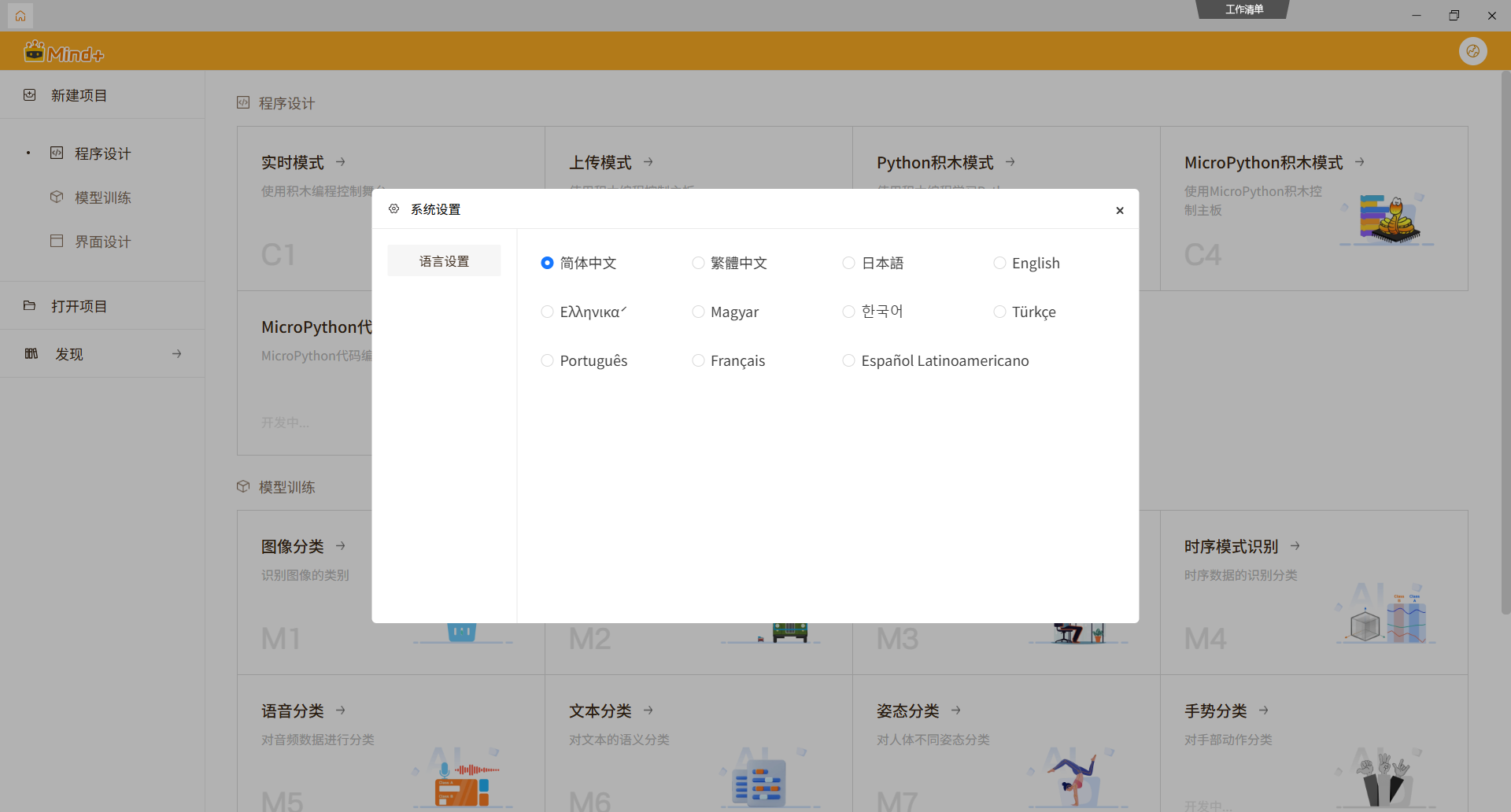
If the Mind+ interface is not in English when you first open it, you can easily change the language settings:
1.Open Settings
- Click the Settings in the top-right corner of the Mind+ interface
2.Change Language
- In the Settings menu, look for Language or 语言设置 option
- Select English from the dropdown menu
- The interface will automatically switch to English
3.Restart if Needed
- If the language doesn't change immediately, restart Mind+ for the changes to take effect
Language Tip
Mind+ supports multiple languages including English, Chinese, and others. You can switch between languages at any time through the Settings menu.
Note
If you encounter problems during installation, please refer to the Common Issues section below for solutions.
Common Issues
Continuously updating...